IPTV Basics
How to Get IPTV: A Practical Setup Guide
To get IPTV, choose an authorized service, use a compatible device and app, then follow the access method supplied for that service. This guide explains the decisions before installation and the checks that keep setup straightforward.
To get IPTV, start with an authorized service, a device that can run its supported app or player, and a reliable home internet connection. The service then provides the right access method for that setup, such as an app sign-in, an M3U playlist, MAG portal details, or an Active Code. The correct method is the one documented for your device and service—not a generic screen from another tutorial.
This guide explains what IPTV setup involves, what to prepare before IPTV installation, how to choose the right setup route, and how to use the result day to day. It is written for viewers setting up a legitimate service at home, not for starting an IPTV business or finding public streams.
What getting IPTV actually involves
IPTV delivers television and on-demand video over an internet connection instead of through an aerial or satellite dish. That does not make every IPTV setup identical. The device, app, service, and authorization method need to match each other before playback can begin.
Think of the setup as four connected parts: the service supplies authorized access; the device displays the video; the app or player reads the supplied details; and the network carries the stream. A problem in any one part can look like an installation problem, which is why it helps to identify the route before changing settings.
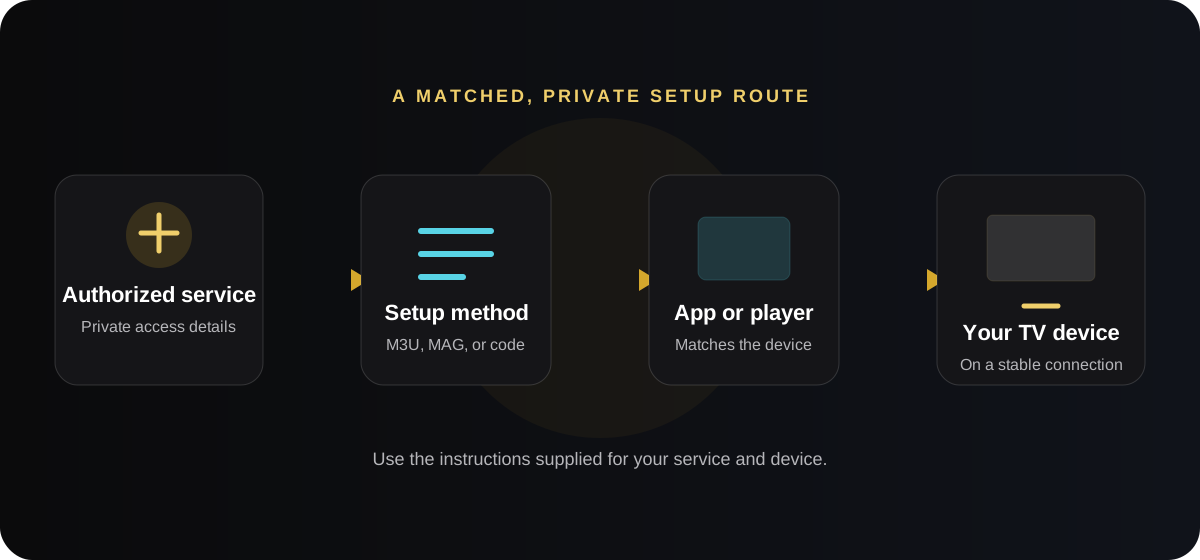
What you need before you start IPTV setup
- 1
An authorized service
Use a service that can explain its access method, supported devices, and support route. Do not substitute a public playlist or details found in a forum for the access information issued for your own service.
- 2
A compatible viewing device
This might be a television platform, streaming stick, set-top box, phone, tablet, or computer—only when the service supports that device. Check the model and operating system before ordering or installing anything.
- 3
The correct app or player
Some services use their own app; others authorize a compatible player. Install only from the source your service documents, because two apps with similar names can use entirely different sign-in screens.
- 4
A stable internet connection
Use the same connection you expect to watch on. If possible, place the device near the router, use Ethernet where practical, or test Wi-Fi strength from the TV location before blaming the app.
- 5
Private access details
Keep the service email, account details, playlist URL, portal address, MAC-related details, or code private. You should need the information only in the appropriate app or player, not in a public comment or social post.
Choose the setup method your service provides
The most important decision is not which word appears in a search result; it is which setup method your authorized service has provided. The table below explains common routes at a high level. It does not replace the service-specific instructions, because menu labels and required fields differ by app and device.
| Setup method | What it is | What to check first |
|---|---|---|
| Provider app / Active Code | A service-specific app associates the installation with a code or account flow. | Confirm the app name, device build, and the exact code-entry instructions. |
| M3U playlist | A private link or file that a compatible player can read. | Confirm that the player supports the format and that the link was issued for your service. |
| MAG portal | A portal-based setup commonly used with compatible set-top-box style applications or devices. | Confirm the portal address and any device identifier requirements with the service. |
| Account sign-in | An app uses a username, email, or another account credential. | Use the service’s official sign-in route and reset process rather than reusing details from another app. |
How to get IPTV step by step
- 1
Confirm what you want to watch and where
Start with the room and device you will really use. A setup for a living-room TV may need a different app and remote-friendly experience than a setup for a tablet. Check that the service supports your intended device before you proceed.
- 2
Choose an authorized service and read its device guidance
Look for a clear explanation of the supported device categories, setup options, and help route. The goal is not to collect every possible IPTV detail; it is to confirm the one documented route that applies to you.
- 3
Install the correct app or player
Download from the official store or source the service identifies. If installation asks to allow an app to install files, enable that permission only for the app you are using and turn it off again once installation is complete.
- 4
Enter only the details for that method
Use the M3U link in a compatible player, MAG portal information in the portal flow, or an Active Code in the intended app—whichever was supplied. Do not try to convert one method into another or add fields that the service did not ask for.
- 5
Let the app finish its first load
After authorization, the app may need time to retrieve its guide, categories, or artwork. Leave it open on a stable connection instead of repeatedly closing it during the first load.
- 6
Test one ordinary item before changing settings
Open a channel or on-demand title and check picture, sound, remote controls, and the guide. A short test isolates a basic setup issue before you customize favourites or make more complex changes.
How do I use IPTV after setup?
Once the service is loaded, everyday use should feel close to any other TV app: browse categories, choose live content or on-demand titles, use the guide where available, and add frequently watched items to favourites if the app offers it. Start with the home screen and the remote’s back button before changing advanced playback settings.
For a shared television, keep access information out of screenshots and avoid saving it in a note that others can see. If you move to a different device, ask whether the service permits that change and whether it needs a new code, different app build, or reissued playlist. Do not assume that copying credentials between devices is supported.
Common IPTV installation problems and what to try
| Problem | Possible causes | What to try |
|---|---|---|
| The app will not install | Wrong device build, insufficient storage, or an untrusted download source. | Confirm the device model and operating system, free some storage, then use the source documented for that device. |
| A code, playlist, or portal is rejected | Typing error, expired details, wrong setup screen, or a device mismatch. | Re-enter carefully without sharing it publicly. Confirm you are using the correct app and ask support to verify the route if it still fails. |
| The app opens but shows no content | First load is incomplete, connection issue, or authorization has not finished. | Wait briefly on a stable connection, restart the app once, and check the service’s account or activation guidance. |
| Video buffers or stops | Weak Wi-Fi, congested network, device performance, or a title-specific issue. | Try another item, test a trusted app on the same device, move closer to the router or use Ethernet, then note what changed. |
| There is picture but no sound | TV output, receiver, or app audio setting mismatch. | Check whether other apps have sound, verify the TV’s output, and use the audio troubleshooting steps before reinstalling. |
When you ask for help, include the device model, app or player name, setup method, and the exact point where the problem occurs. State whether the issue affects all content or one item and which basic checks you tried. Keep codes, private URLs, and account credentials out of public messages.
Practical tips for a smoother setup
- Use one documented setup guide from start to finish instead of combining steps from several providers.
- Take a private note of the device model and app version before contacting support; it is more useful than a vague description of the screen.
- Run software updates on the device when they are available, then restart it before a first installation or after a major update.
- Prefer a wired connection for a fixed TV setup when that is easy to arrange; otherwise, test Wi-Fi at the viewing location.
- Read the service’s current device and account rules before moving setup information to another screen.
The simple way to start
Getting IPTV is straightforward when you match an authorized service, a supported device, and the exact access method supplied for that combination. Prepare the device and connection, install the right app or player, enter the private details only where requested, then test one item before changing anything else.
If you are ready to choose a service option, review the current Explore Lounge plans. If you already have details but are unsure which setup route fits your device, use the contact page with the device model and app name.
Frequently asked questions
What do I need to get IPTV?
You need an authorized service, a compatible device, the correct app or player, a stable internet connection, and the private access method issued for that service.
Is IPTV setup the same on every device?
No. Apps, operating systems, and supported access methods vary. Use the instructions that match your device and service instead of a generic tutorial.
Can I use an M3U playlist for every IPTV service?
No. An M3U playlist works only when the service provides one and the player supports it. Other services may use an app, MAG portal, or code-based setup.
What should I do if IPTV installation fails?
Check the device compatibility, app source, internet connection, and setup method first. Then contact the service’s support route with the device model and the step that failed, without publishing private access details.
Ready to choose your IPTV setup?
View current Explore Lounge plans, then use the setup route that matches your device and service option.
More from the journal
Internet Speed for IPTV: Plan for Streams, Bitrate, and Stability
Choose an internet connection for the streams you expect to watch at once, then test it at the viewing device—not only beside the router.
Read the guideIPTV vs Satellite: Delivery, Equipment, and Viewing Flexibility
IPTV and satellite use different delivery paths. The better fit depends on your equipment, connection, location, and service terms.
Read the guideIPTV Legality UK Guide
IPTV is a delivery technology. The important question in the UK is whether the content and access are properly authorised.
Read the guide