Troubleshooting
IPTV 4K: What to Check Before Streaming
4K viewing depends on the complete path: the device, display, connection, and the item you select all matter.
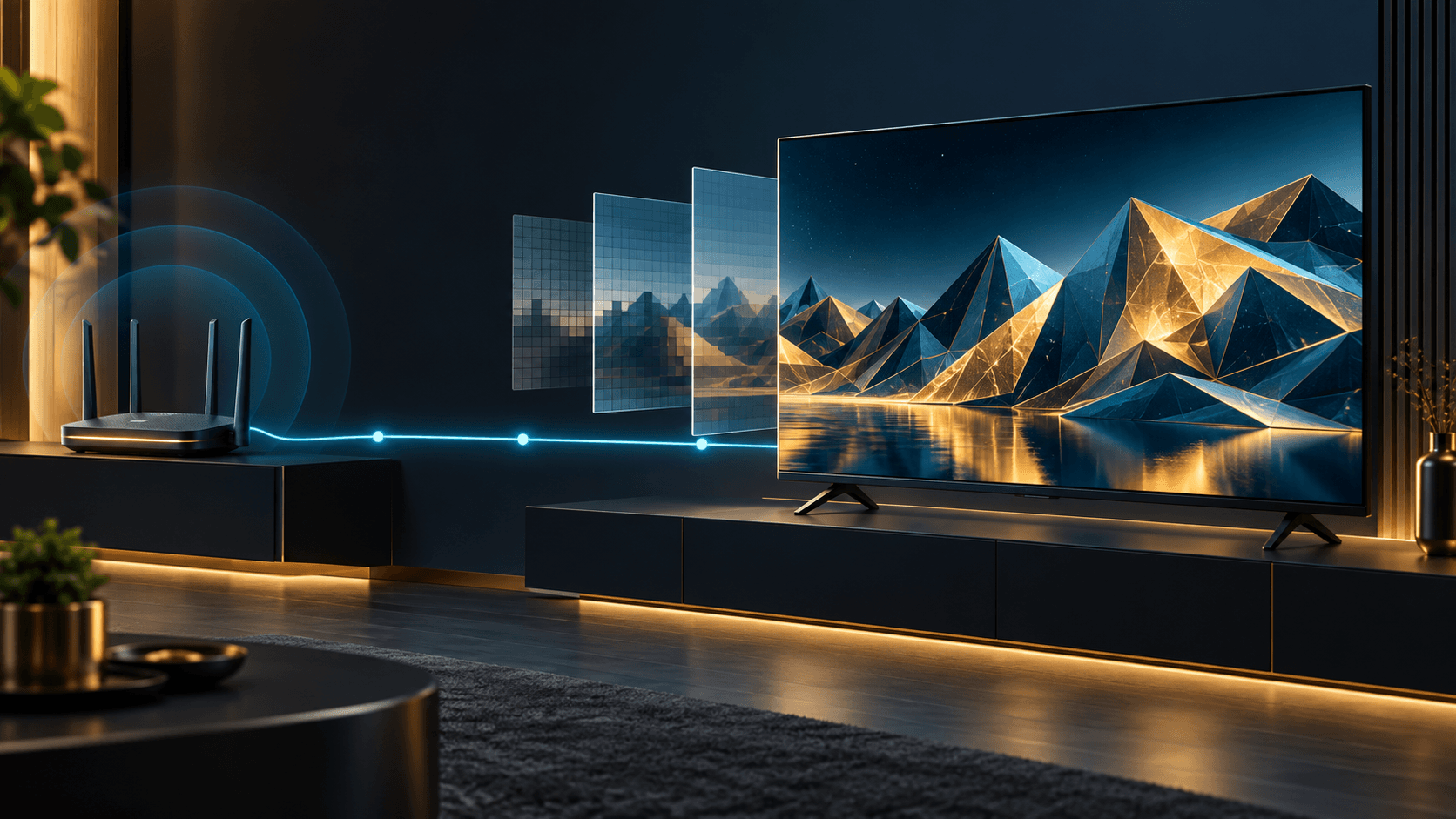
4K describes a high-resolution picture format. Whether it is practical on a particular setup depends on more than the television: the supported device, the display connection, the internet path, and the available item all matter.
Start with the device and display
Confirm that the TV device and display are connected as intended before changing app settings. A compatible app build is selected by device architecture, not by picture quality. Fire TV and Fire Stick use the ARMv7 release; newer Android TV and Google TV devices commonly use ARM64, while older devices should be checked.
Check the connection path
Explore Lounge recommends at least 15 Mbps for HD and 25 Mbps or more for 4K as connection guidance, not a universal playback guarantee. Wi-Fi distance, interference, other household traffic, and the device itself can all affect results.
Use a fastest-first test
- 1
Try another item
Check whether the issue affects one item or all playback.
- 2
Compare another trusted app
This can show whether the local device or network path needs attention.
- 3
Check the active output
Confirm the TV and any HDMI equipment are using the expected input and display settings.
- 4
Restart normally
Close and reopen the app, then restart the TV device through its normal controls.
Avoid unnecessary setup changes
Do not factory-reset a device, clear app data, or install an unofficial file as an early response to picture trouble. Change one variable at a time so you can identify whether the issue involves the connection, device, app, or an individual item.
Frequently asked questions
Does an ARM64 app guarantee 4K playback?
No. ARM64 identifies a compatible app architecture; it does not guarantee picture quality or playback.
How much internet speed is recommended for 4K?
Explore Lounge recommends 25 Mbps or more for 4K as connection guidance, not a universal performance guarantee.
Should I reset my device if picture quality changes?
Not first. Isolate the connection, device, app, and affected item before making major changes.
Ready to explore your options?
View the available Explore Lounge plans and choose the subscription that fits your needs.
More from the journal
IPTV App Keeps Crashing? Safe Checks Before You Reset
An app that closes or returns to the device home screen is a crash—not the same problem as buffering, playback failure, or missing sound.
Read the guideInternet Speed for IPTV: Plan for Streams, Bitrate, and Stability
Choose an internet connection for the streams you expect to watch at once, then test it at the viewing device—not only beside the router.
Read the guideExplore Lounge Activation Code Not Working?
Check the code, app source, and setup stage before contacting support.
Read the guide